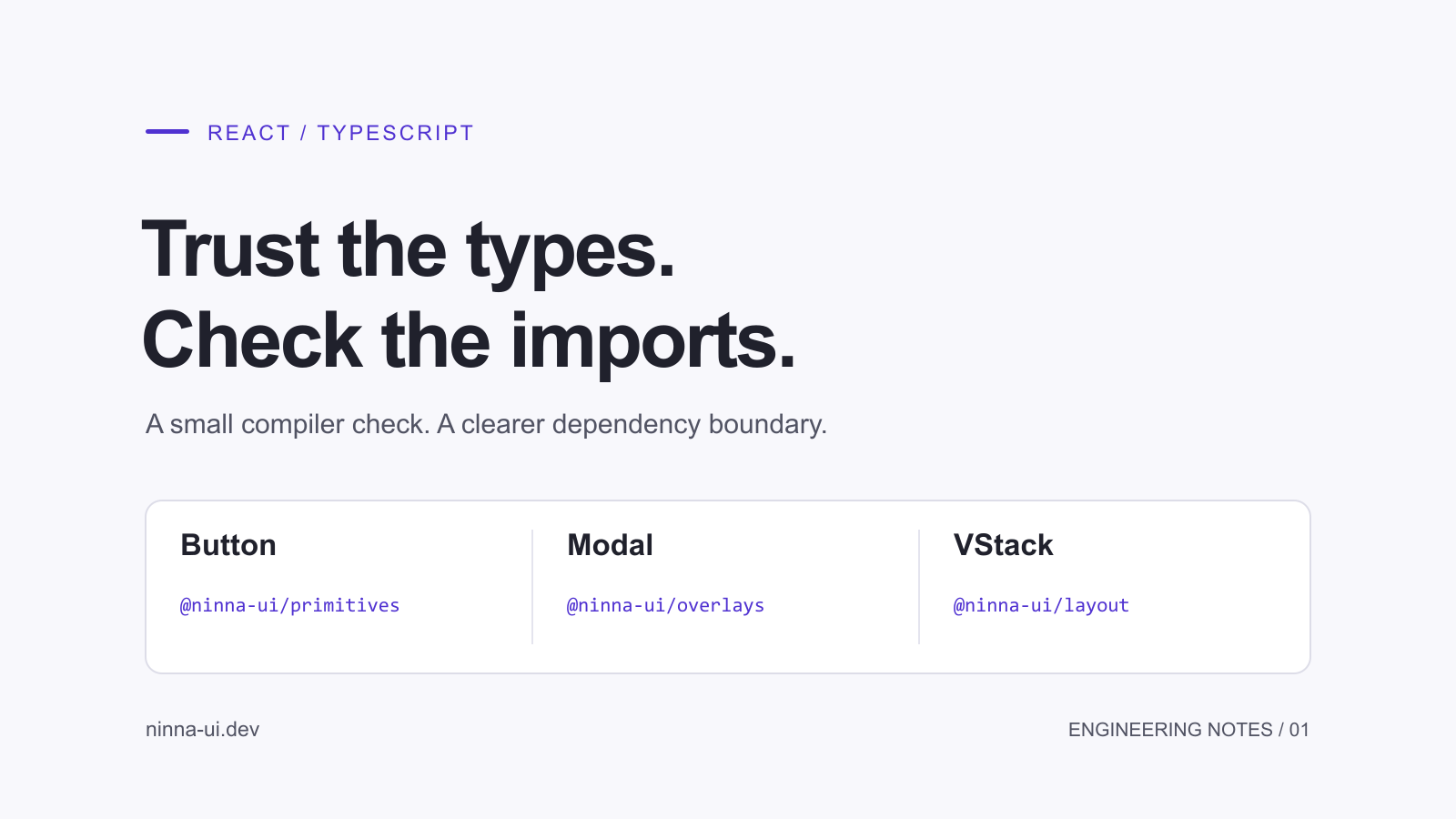
Cover created with AI-assisted vector code. Cover description: Trust the types. Check the imports. Button, Modal and VStack map to three different Ninna UI packages.
A small TypeScript check can catch a plausible but nonexistent component import before it becomes part of your next React feature.
A generated React component can look convincing while importing an API that its package does not export. The failure is easy to miss in a code review: the component name exists, the package name exists, and the combination feels reasonable. A small compiler check gives you a concrete answer before that code spreads across a feature.
We maintain Ninna UI. This article was drafted with AI assistance; its import examples were checked with TypeScript against installed Ninna UI 0.7.0 packages. The example is a controlled reproduction, not a claim about how often any coding agent makes this mistake.
The plausible import that fails
Ninna UI splits components across public packages. Button belongs to primitives, Modal belongs to overlays, and VStack belongs to layout. Here is a deliberately incorrect import:
import { Modal } from "@ninna-ui/primitives";
void Modal;
With the installed 0.7.0 declarations, TypeScript reports TS2305: the primitives module has no exported member named Modal. The fix is to import Modal from @ninna-ui/overlays. Renaming it, installing an unrelated dependency, or adding a local declaration would conceal the underlying mismatch.
Create a tiny audit file
Use an existing React and TypeScript project. If these packages are missing, install only the public packages used by the example. In a new project, use the current packages; keep the lockfile so the check has a reproducible version.
pnpm add @ninna-ui/core@latest @ninna-ui/primitives@latest @ninna-ui/overlays@latest @ninna-ui/layout@latest
pnpm add -D typescript @types/react @types/react-dom
Create ui-import-audit.ts in your project root. The file deliberately renders nothing. Referencing each import keeps the audit focused on the public values you expect the package to expose.
import { Button } from "@ninna-ui/primitives";
import { Modal } from "@ninna-ui/overlays";
import { VStack } from "@ninna-ui/layout";

// This checks imports; it renders no UI.
void [Button, Modal, VStack];
Give the check a clear boundary
Create tsconfig.ui-audit.json beside the file. This isolated configuration checks one fixture without pulling in every application route. The bundler resolution setting is appropriate for this bundled React example; use your framework's supported configuration for the application itself.
{
  "compilerOptions": {
    "target": "ES2022",
    "module": "ESNext",
    "moduleResolution": "bundler",
    "lib": ["ES2022", "DOM", "DOM.Iterable"],
    "types": ["react"],
    "strict": true,
    "skipLibCheck": true,
    "noEmit": true
  },
  "include": ["ui-import-audit.ts"]
}
pnpm exec tsc -p tsconfig.ui-audit.json
The corrected fixture should exit successfully. Then make the known wrong change: import Modal from primitives. Run the same command and confirm that it fails with TS2305. Restore the correct import and confirm success again. That negative control checks that your audit is actually compiling the file you think it is.
The noEmit option prevents JavaScript output. skipLibCheck skips checking declaration-file internals; it does not exempt the imports in your audit file from type checking. If the check reports a missing package instead, verify the installation and the directory from which you ran it before changing compiler settings.
Give your agent an acceptance condition
A package map helps an agent choose an import. An executable check helps you decide whether to accept the result. Put a short task-specific rule in the project's agent instructions, and keep the actual public API reference close to the task.
Before changing a React UI import:
1. Check the installed package's public export and the current docs.
2. Import Button from @ninna-ui/primitives.
3. Import Modal from @ninna-ui/overlays.
4. Import VStack from @ninna-ui/layout.
5. Run the import audit, then the application's normal typecheck and build.
Do not silence an import error with any, @ts-ignore, or a fabricated module declaration.
For this reproduction, TypeScript 5.9.3 and React 19.2.8 checked Ninna UI 0.7.0. The corrected three-import fixture produced no diagnostics; the deliberately incorrect Modal import produced TS2305. When you upgrade packages, rerun the check instead of assuming an old article still describes the installed release.
What passing this check does not prove
A correct import is only one part of a working UI. This fixture does not render a modal, open a browser, inspect CSS, or measure a bundle. It also cannot prove that published runtime code agrees perfectly with its declarations.
- Run the application's normal typecheck to check real props and composition.
- Run a production build to check bundler integration and package resolution.
- For rendered Ninna UI examples, follow the installation guide's CSS imports and root data-theme setup. An import-only fixture needs no CSS because it renders nothing.
- Check actual interactive behavior: labels, keyboard navigation, focus movement and error states. Compiler success is not an accessibility audit.
- Keep runtime tests for behavior you depend on. This import check complements them; it does not replace them.
The useful result is modest: a plausible import becomes a checked dependency boundary. Start with the few APIs a generated feature needs, prove the check can fail, and keep the application's broader checks in the acceptance criteria.
References
TypeScript: module resolution options
About the author
- A computer enginer who loves coding.
Comments
Join the discussionNo comments yet. Be the first to comment.
